
ZenGrove
Grow a plant, one node at a time.
Grow a plant, one node at a time.
Explore all 45 ZenGrove nodes for Maya with illustrated settings. Shape Cross Section profiles, create multi-way Splits, find properties and build procedural plants.
Volume Scatter
Places assets inside or on a captured hull mesh. Use the hull as a volume for a full crown or a surface for repeated details.
Branches · Assets
Growth
Affect
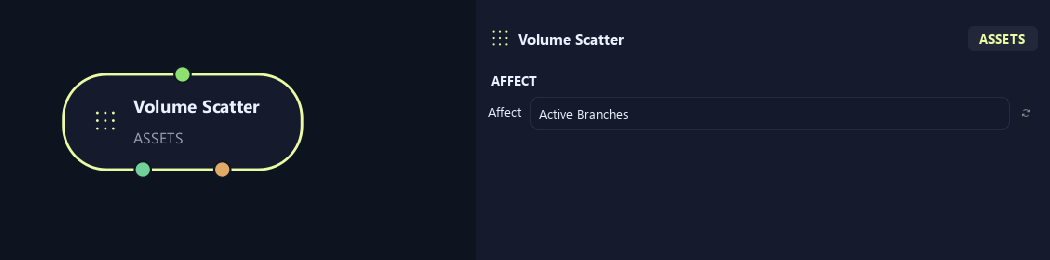
- Affect
Chooses which branches are affected. Active Branches uses the latest generated layer. Active + Descendants also includes growth from that layer. Active Generated Hierarchy additionally includes ancestors created by that same generated contribution. Entire Input uses everything arriving here. Attached children follow a moved parent even when they are not reshaped themselves.
Hull
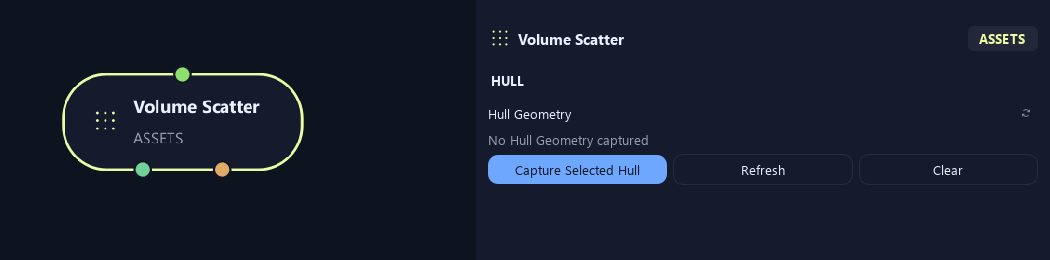
- Hull Geometry
Capture Selected Hull assigns a polygon boundary. Refresh updates it after edits; Clear removes it. Edit Hull selects the captured hull when available.
Distribution
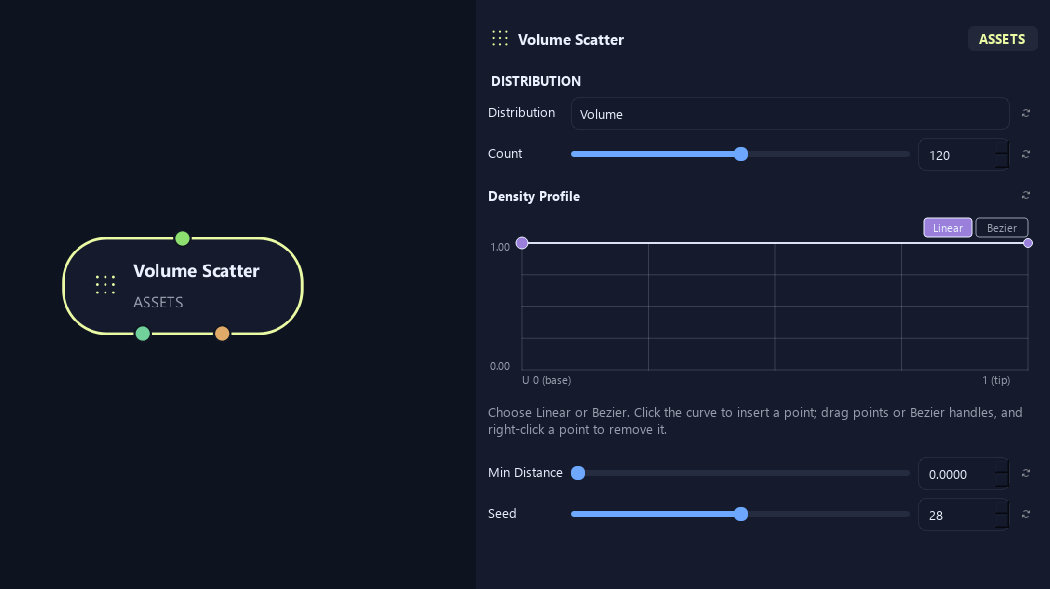
- Distribution
Volume places assets inside the hull. Surface places them on its outer surface.
- Count
Sets requested placements in or on the hull. Spacing and available area can reduce the final count.
- Density Profile
Controls placement probability along the supporting branch. Left is base and right is tip. One keeps placements; zero rejects them in that region.
- Min Distance
Keeps placements apart where possible. Large spacing or a small hull can reduce the final count.
- Seed
Changes this node's random variation. Keep the seed and settings unchanged to reproduce the same result.
Placement
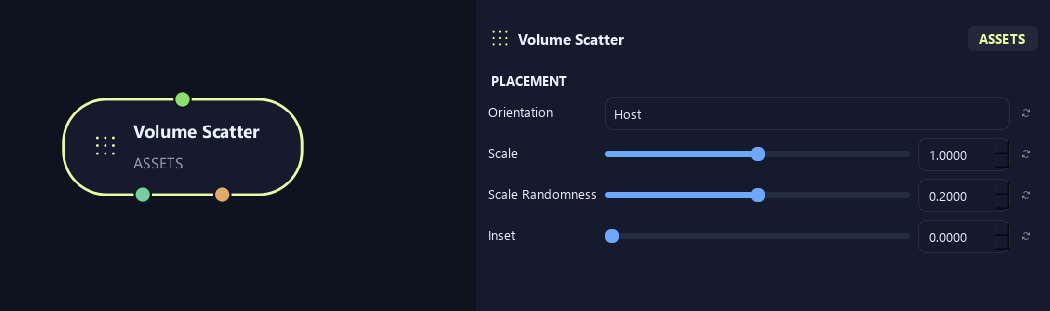
- Orientation
Host follows the supporting branch. Outward points away from the hull center. Surface Normal follows its surface direction. Up points toward world up.
- Scale
Scales the asset or generated child uniformly. One keeps its size; 0.5 halves it.
- Scale Randomness
Varies size between placements. Zero keeps one scale multiplier.
- Inset
Moves placements inward from the hull surface.
Orientation
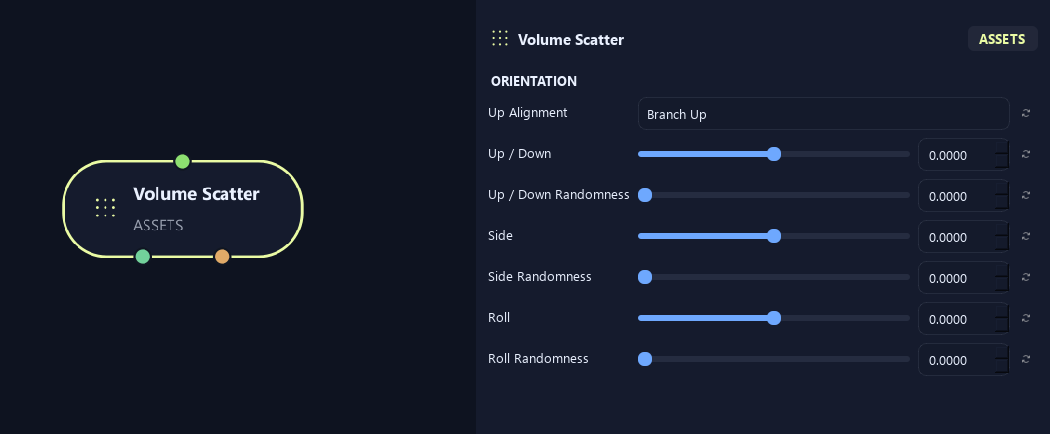
- Up Alignment
Branch Up follows local branch up. World Up uses scene up. Free removes that alignment for a less constrained orientation.
- Up / Down
Tilts the leaf or asset up or down. Positive lifts the tip; negative lowers it.
- Up / Down Randomness
Varies up/down tilt between placements.
- Side
Turns the asset sideways in its local orientation.
- Side Randomness
Varies sideways angle between placements.
- Roll
Rolls the asset around its length direction.
- Roll Randomness
Varies roll between placements.
Scale
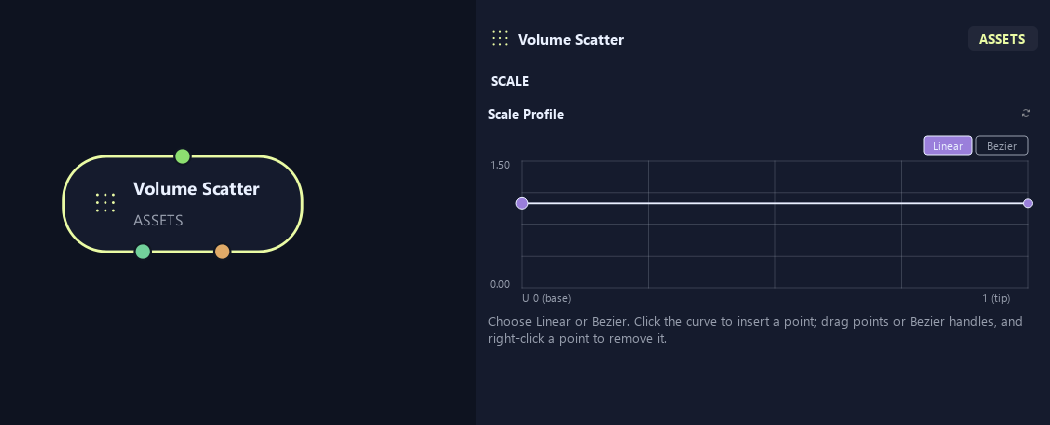
- Scale Profile
Multiplies size along the supporting branch from base on the left to tip on the right.
What is ZenGrove used for?
Explore all 45 ZenGrove nodes for Maya with illustrated settings. Shape Cross Section profiles, create multi-way Splits, find properties and build procedural plants.
Which host application does ZenGrove support?
ZenGrove is built for Autodesk Maya and is distributed through AO Studio Tools.
Where can I download ZenGrove?
Download the current AO Studio Tools package from https://aostudio.tools/getthetools.html and install it through AO.Hub.