
ZenGrove
Grow a plant, one node at a time.
Grow a plant, one node at a time.
Explore all 45 ZenGrove nodes for Maya with illustrated settings. Shape Cross Section profiles, create multi-way Splits, find properties and build procedural plants.
Game Output
Prepares geometry, textures and optional LODs for export. Connect Texture Atlas for shared foliage sheets and packed maps.
Branches · Growth · Atlas
Result
Fast Instances speeds up large direct-mesh collections with groups of 128 connected instances. Edit the source mesh to update the groups. On Output, leaves remain individually selectable; component edits to generated leaves affect their group, while hierarchies use ordinary instances. Converted duplicates do not benefit from Fast Instances.
When Avoid Leaf Collision is enabled on an incoming Leaves or Leaf Volume node, this output checks the combined foliage before applying preview limits. Skip can reduce the final leaf count. Check the build status for rotated, skipped or unresolved leaves. Active Dynamics and leaf avoidance cannot be used together in this version.
Setup
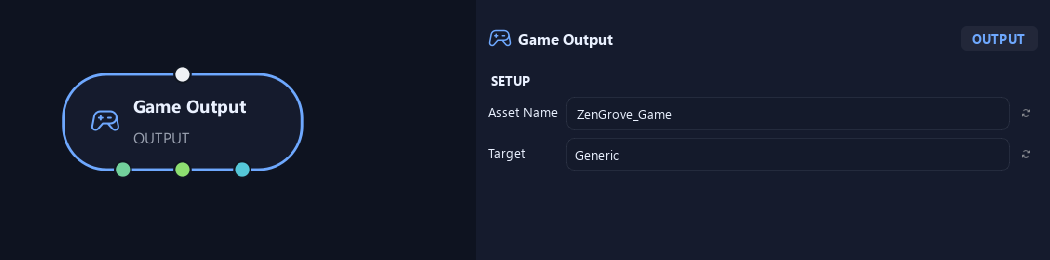
- Asset Name
Gives this tree, collection or output a recognizable name.
- Target
Chooses Generic, Unreal or Unity as the destination profile.
Geometry
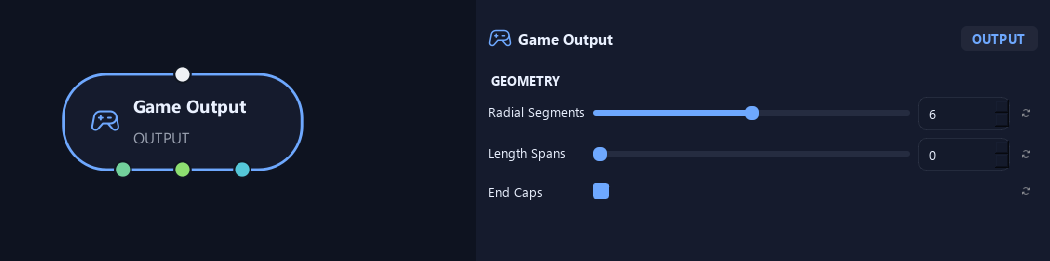
- Radial Segments
Sets fallback exported tube sides. Resolution overrides take priority.
- Length Spans
Sets fallback exported length spans. Zero keeps generated detail; Resolution overrides take priority.
- End Caps
Closes free branch tips and the bases of parentless branches.
Uv & Textures
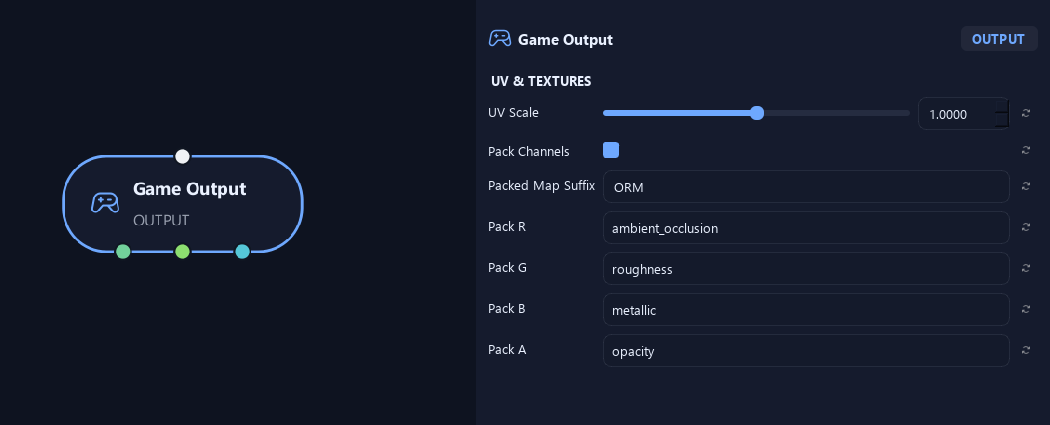
- UV Scale
Scales output UVs, changing texture size on the geometry.
- Pack Channels
Combines grayscale maps into the RGBA channels of one texture.
- Packed Map Suffix
Names the packed texture suffix, such as ORM.
Available when Pack Channels is On.
- Pack R
Chooses the map written into the packed texture's red channel.
Available when Pack Channels is On.
- Pack G
Chooses the map written into its green channel.
Available when Pack Channels is On.
- Pack B
Chooses the map written into its blue channel.
Available when Pack Channels is On.
- Pack A
Chooses the map written into its alpha channel.
Available when Pack Channels is On.
Materials
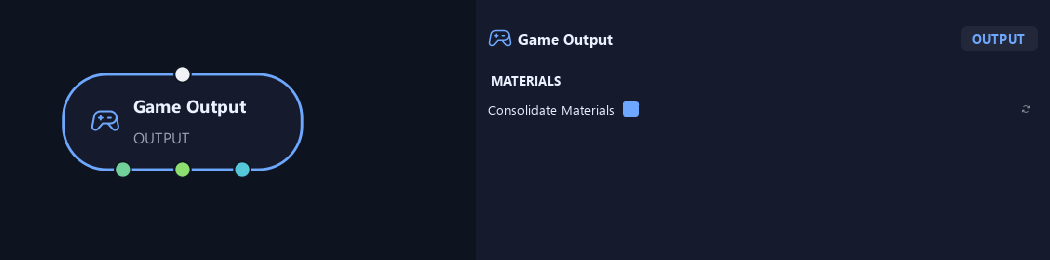
- Consolidate Materials
Combines compatible material assignments for a simpler export.
Preview & Safety
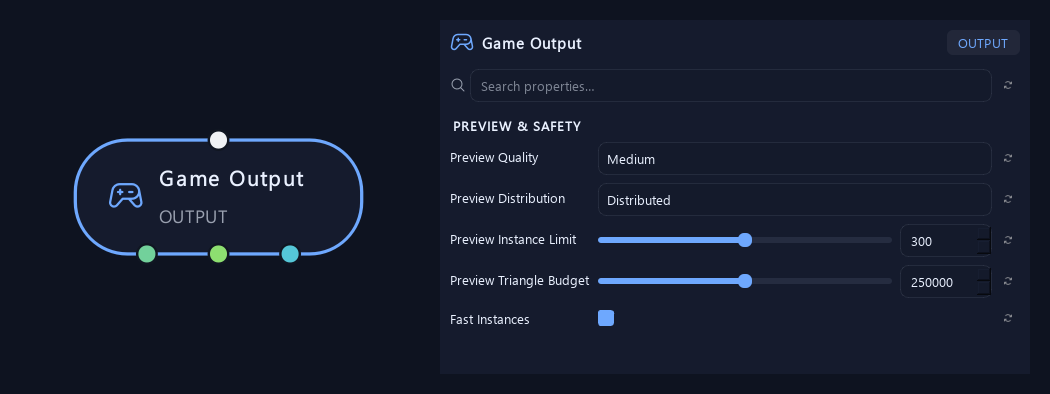
- Preview Quality
Chooses preview detail. Lower quality helps quicker adjustments; High uses more detail.
- Preview Distribution
Distributed spreads the preview across the crown. Random samples randomly. Full requests all placements, subject to preview limits.
- Preview Instance Limit
Limits placed objects shown in a preview.
- Preview Triangle Budget
Limits asset triangles in the preview. Heavy source meshes fit fewer placements within the budget.
- Fast Instances
Speeds up large mesh collections with groups of 128 connected instances. Edit the source mesh to update all groups. Has no effect on converted duplicates.
Export
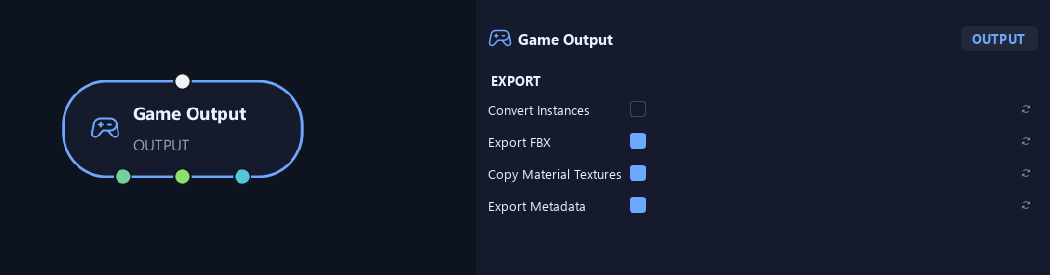
- Convert Instances
Converts placed instances to separate geometry for export.
- Export FBX
Writes geometry as an FBX file during game export.
- Copy Material Textures
Copies bark and cap source textures. Connected atlas textures are always written.
- Export Metadata
Writes an accompanying file describing the exported asset.
Advanced
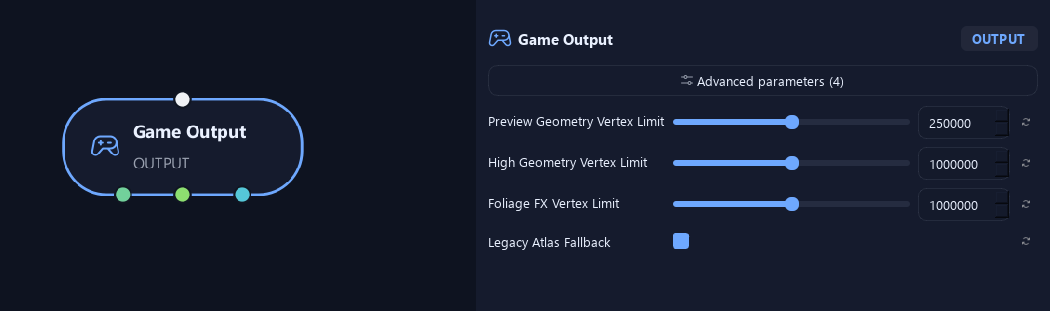
- Preview Geometry Vertex Limit
Stops a preview if estimated branch geometry exceeds this vertex count.
- High Geometry Vertex Limit
Limits estimated branch-geometry vertices in a High build.
- Foliage FX Vertex Limit
Limits foliage vertices created for leaf droop or transferred normals in High builds.
- Legacy Atlas Fallback
Preserves atlas fallback behavior for older graphs. A connected Atlas is always built and remapped.
What is ZenGrove used for?
Explore all 45 ZenGrove nodes for Maya with illustrated settings. Shape Cross Section profiles, create multi-way Splits, find properties and build procedural plants.
Which host application does ZenGrove support?
ZenGrove is built for Autodesk Maya and is distributed through AO Studio Tools.
Where can I download ZenGrove?
Download the current AO Studio Tools package from https://aostudio.tools/getthetools.html and install it through AO.Hub.