
ZenGrove
Grow a plant, one node at a time.
Grow a plant, one node at a time.
Explore all 45 ZenGrove nodes for Maya with illustrated settings. Shape Cross Section profiles, create multi-way Splits, find properties and build procedural plants.
Branch
Adds a new layer of branches to the incoming stems. Choose how many appear, where they appear and how their angle, length and thickness vary along the parent.
Branches
Branches
Count Variation varies the number of children per parent. Distribution Profile moves attachment sites toward higher-density regions within Start/End while preserving the chosen count and pairs or whorls. Scale Profile multiplies both child length and radius at each attachment position. Flat defaults preserve the usual result.
Profile positions run from the parent base (0) to its tip (1). Scale Profile combines with Scale and Twig Start/End Scale; Length Profile separately adjusts length. In Bézier mode, Alt-drag unlinks tangents and Shift-drag links them again.
Generation
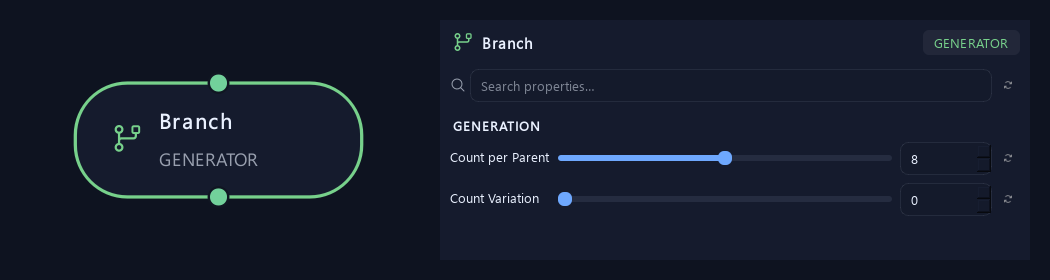
- Count per Parent
Sets new growth per parent. Random, Parallel and Alternating count individual children. Opposite counts sites with two children each; Whorled counts sites with Whorl Count children each. Count 8 and Whorl Count 3 produce 24 children before any split-range allocation.
- Count Variation
Adds seeded variation to Count per Parent, from minus to plus this amount, with a minimum result of zero. Opposite varies pairs and Whorled varies whorls. Existing Split allocation still applies.
Distribution
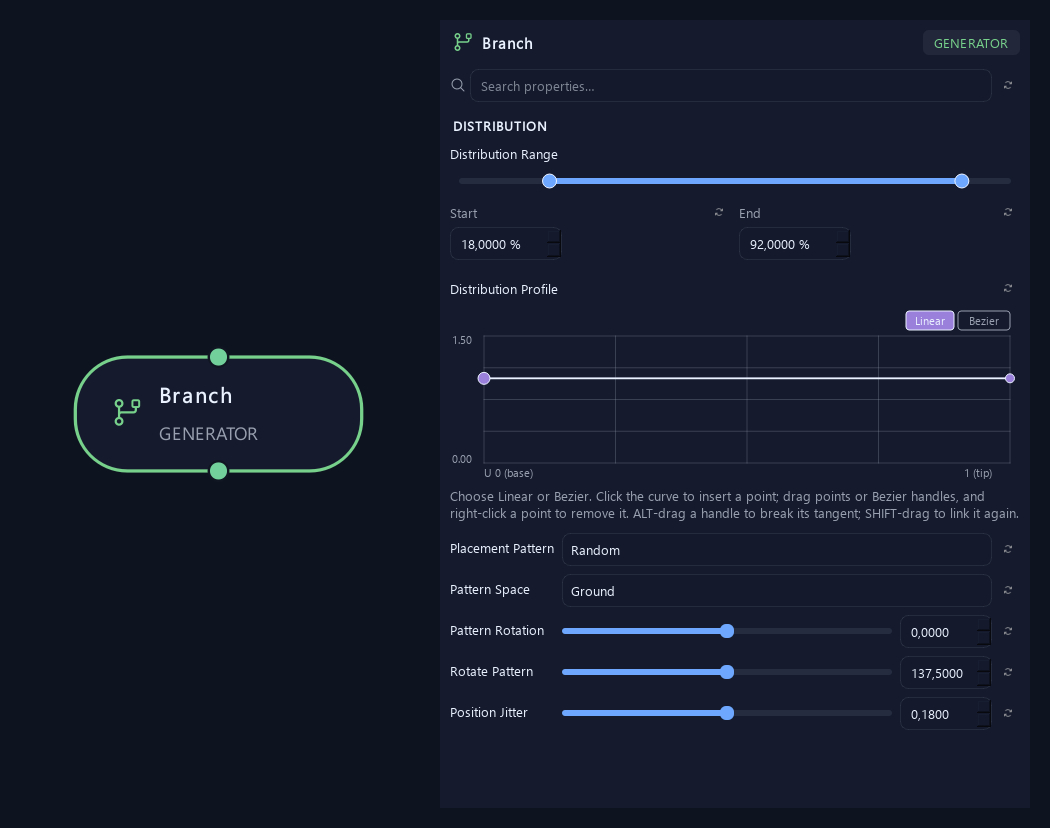
- Distribution Range — Start %
Sets where placement begins on the parent. Zero is the base and one is the tip; the range slider displays percentages.
- Distribution Range — End %
Sets where placement ends. Together with Start, this defines the Distribution Range.
- Distribution Profile
Sets relative spawn density along the parent, from base (0) to tip (1), within Start/End. Higher regions attract more attachment sites without changing the chosen count or breaking pairs and whorls. Flat and all-zero profiles keep the ordinary placement.
- Placement Pattern
Random distributes freely. Parallel pairs a total child count. Alternating switches sides along the parent. Opposite creates two children per site. Whorled creates a ring of children per site.
- Pattern Space
Ground aligns the pattern to the horizontal world plane. Parent turns it with the branch. Opposite and Whorled always follow the parent.
Available when Placement Pattern is Random or Parallel or Alternating.
- Pattern Rotation
Rotates the whole arrangement around the parent without choosing new random positions.
- Rotate Pattern
Rotates each successive site around the parent. With Opposite, zero aligns pairs and 90 degrees crosses each pair over the previous one.
- Position Jitter
Loosens spacing along the parent while keeping paired sites together.
Orientation
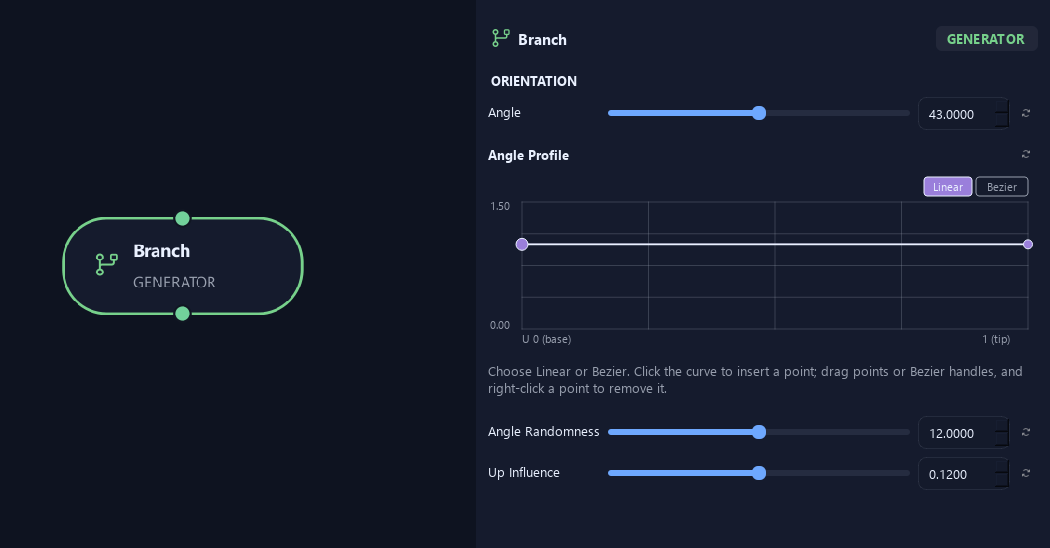
- Angle
Sets the angle away from the parent direction. Small values follow it; larger values open the growth outward.
- Angle Profile
Multiplies Angle by attachment position on the parent: left is base and right is tip. One keeps the angle, lower values close it and higher values open it.
- Angle Randomness
Varies the angle between branches or leaves. Zero keeps it consistent.
- Up Influence
Biases the growing direction upward. Negative values bias it downward.
Shape
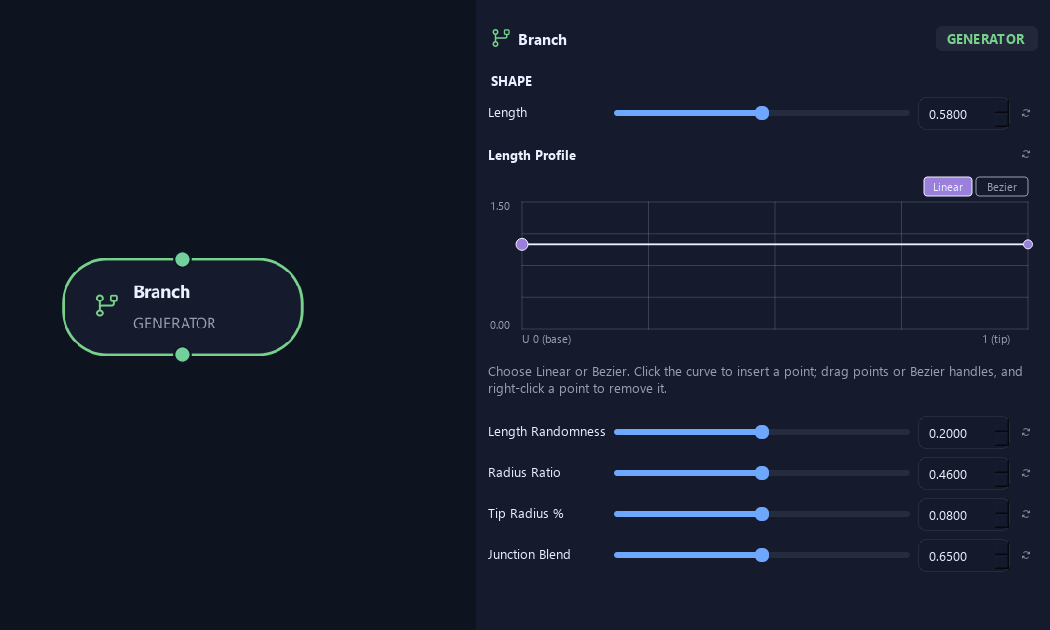
- Length
Sets child length relative to parent length. For example, 0.5 starts at half the parent length, before profiles and randomness.
- Length Profile
Multiplies child length by its attachment position. Left is the parent base and right is its tip. One keeps Length; 0.5 halves it.
- Length Randomness
Varies length between branches. Zero keeps lengths consistent.
- Radius Ratio
Sets child base radius relative to parent radius at the attachment.
- Tip Radius %
Sets tip radius as a fraction of child base radius. For example, 0.08 leaves 8% at the tip.
- Junction Blend
Softens the change in direction and thickness at the parent connection. Zero makes a harder junction.
Deformation
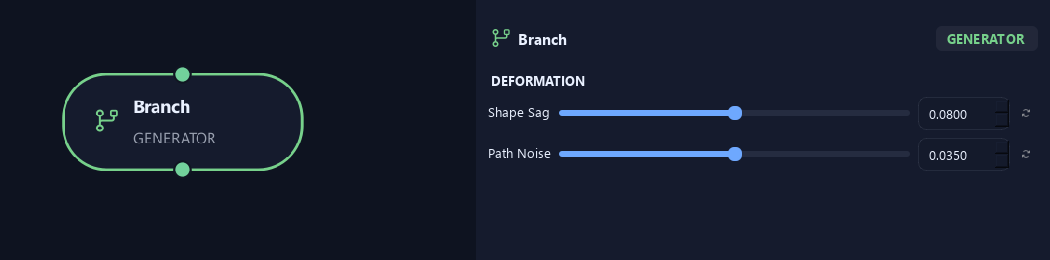
- Shape Sag
Adds sag to the new branch shape. Positive droops; negative lifts.
- Path Noise
Adds small irregular bends to the generated path.
Scale
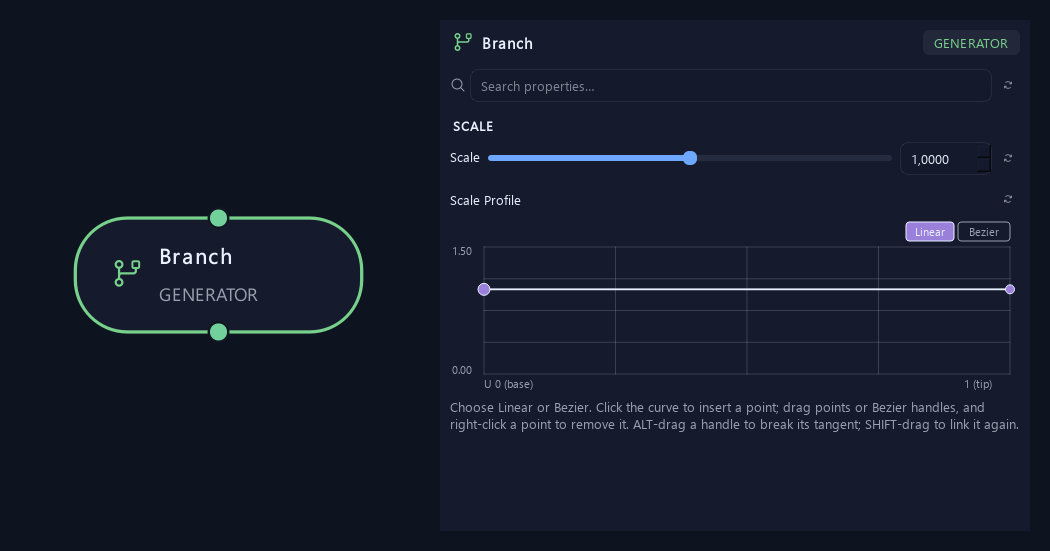
- Scale
Scales the asset or generated child uniformly. One keeps its size; 0.5 halves it.
- Scale Profile
Multiplies child length and radius at each attachment position along the parent. It combines with Scale and, for Twigs, Start/End Scale. A flat value of 1 preserves those settings. Length Profile separately affects length; geometry safety minima still apply.
Geometry
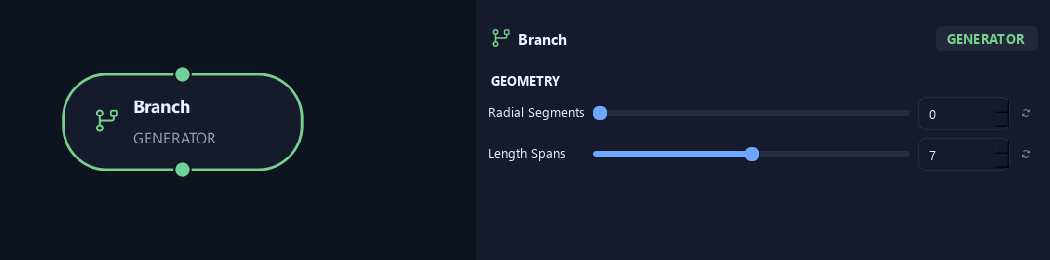
- Radial Segments
Sets sides around the branch tube. More sides look rounder. Where zero is available, it inherits Output.
- Length Spans
Sets spans along the branch. More spans allow smoother bends and add geometry.
Advanced
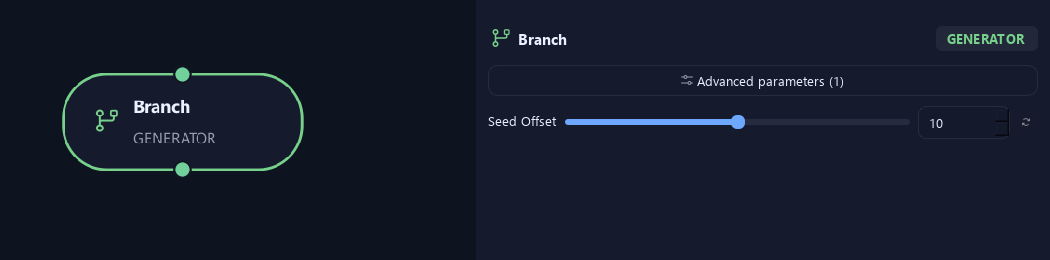
- Seed Offset
Changes this node's random variation. Keep the seed and settings unchanged to reproduce the same result.
Distribution
Shown example: Placement Pattern = Whorled.
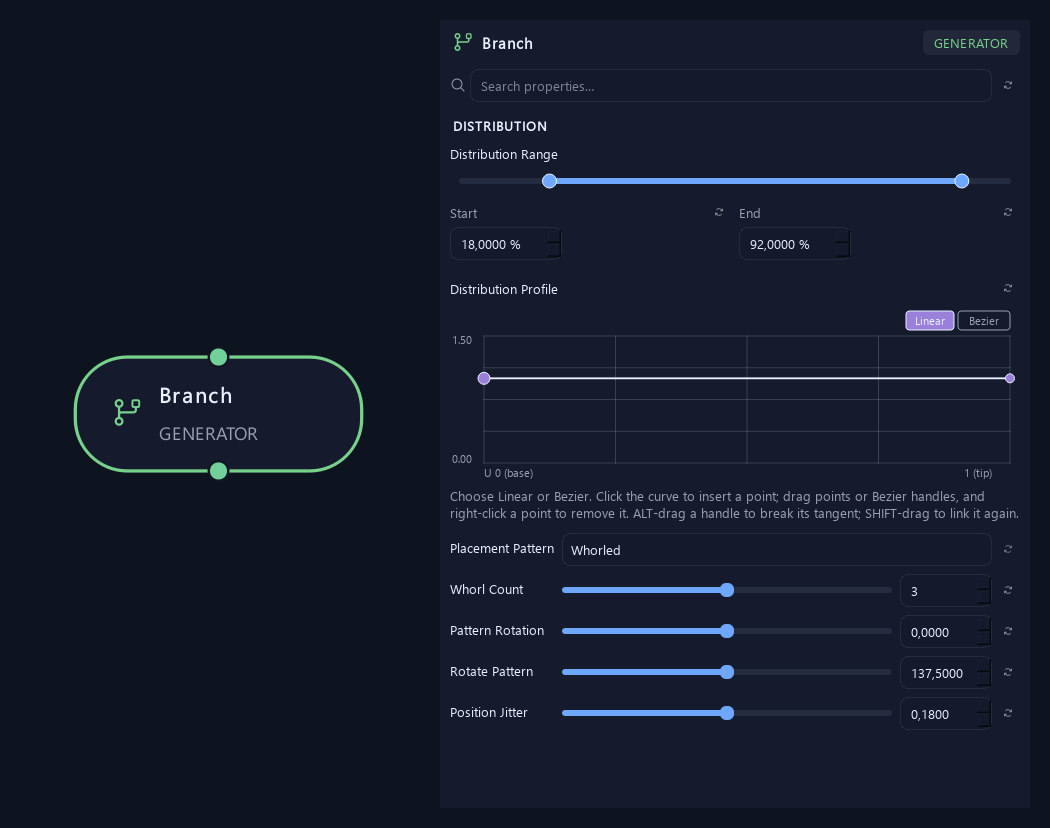
- Distribution Range — Start %
Sets where placement begins on the parent. Zero is the base and one is the tip; the range slider displays percentages.
- Distribution Range — End %
Sets where placement ends. Together with Start, this defines the Distribution Range.
- Distribution Profile
Sets relative spawn density along the parent, from base (0) to tip (1), within Start/End. Higher regions attract more attachment sites without changing the chosen count or breaking pairs and whorls. Flat and all-zero profiles keep the ordinary placement.
- Placement Pattern
Random distributes freely. Parallel pairs a total child count. Alternating switches sides along the parent. Opposite creates two children per site. Whorled creates a ring of children per site.
- Whorl Count
Sets children per site in Whorled mode. Opposite always uses two.
Available when Placement Pattern is Whorled.
- Pattern Rotation
Rotates the whole arrangement around the parent without choosing new random positions.
- Rotate Pattern
Rotates each successive site around the parent. With Opposite, zero aligns pairs and 90 degrees crosses each pair over the previous one.
- Position Jitter
Loosens spacing along the parent while keeping paired sites together.
What is ZenGrove used for?
Explore all 45 ZenGrove nodes for Maya with illustrated settings. Shape Cross Section profiles, create multi-way Splits, find properties and build procedural plants.
Which host application does ZenGrove support?
ZenGrove is built for Autodesk Maya and is distributed through AO Studio Tools.
Where can I download ZenGrove?
Download the current AO Studio Tools package from https://aostudio.tools/getthetools.html and install it through AO.Hub.