
ZenGrove
Grow a plant, one node at a time.
Grow a plant, one node at a time.
Explore all 45 ZenGrove nodes for Maya with illustrated settings. Shape Cross Section profiles, create multi-way Splits, find properties and build procedural plants.
Asset Scatter
Places meshes from an Asset Collection along branches, with controls for position, rotation and scale.
Branches · Assets
Growth
Affect
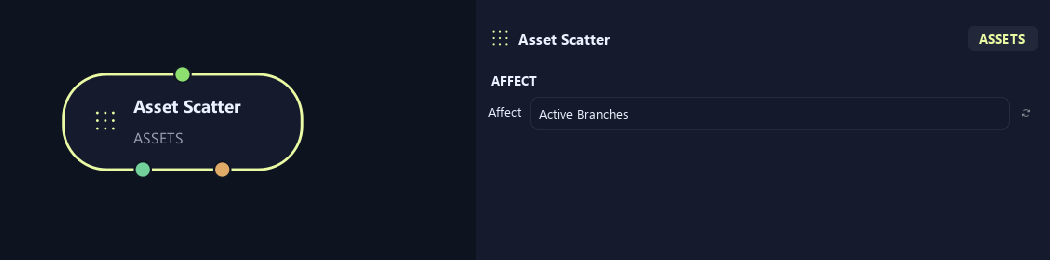
- Affect
Chooses which branches are affected. Active Branches uses the latest generated layer. Active + Descendants also includes growth from that layer. Active Generated Hierarchy additionally includes ancestors created by that same generated contribution. Entire Input uses everything arriving here. Attached children follow a moved parent even when they are not reshaped themselves.
Setup
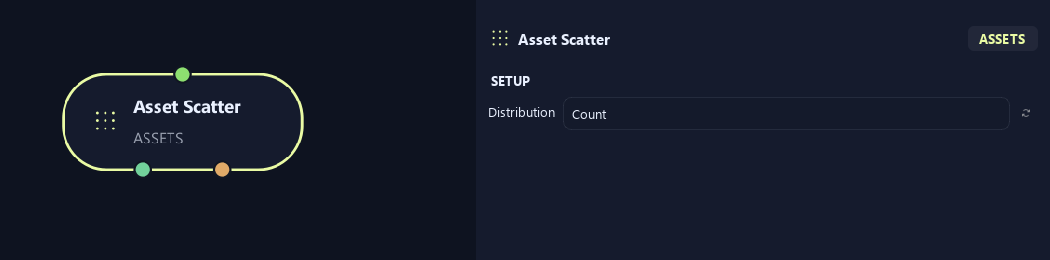
- Distribution
Count uses a total placement count. Density uses placements per unit of eligible branch length.
Generation
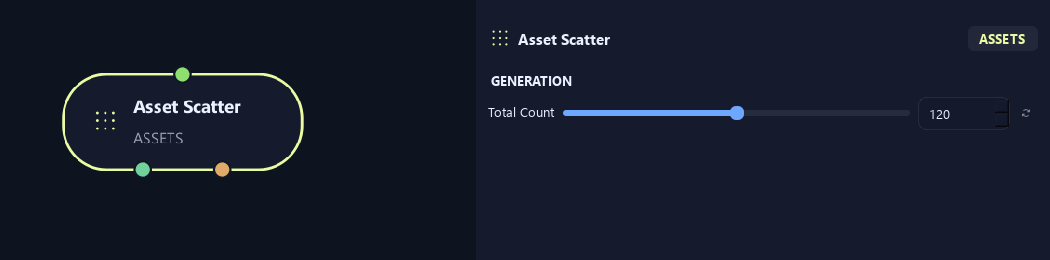
- Total Count
Sets total placements across affected branches in Count mode.
Available when Distribution is Count.
Distribution (1)
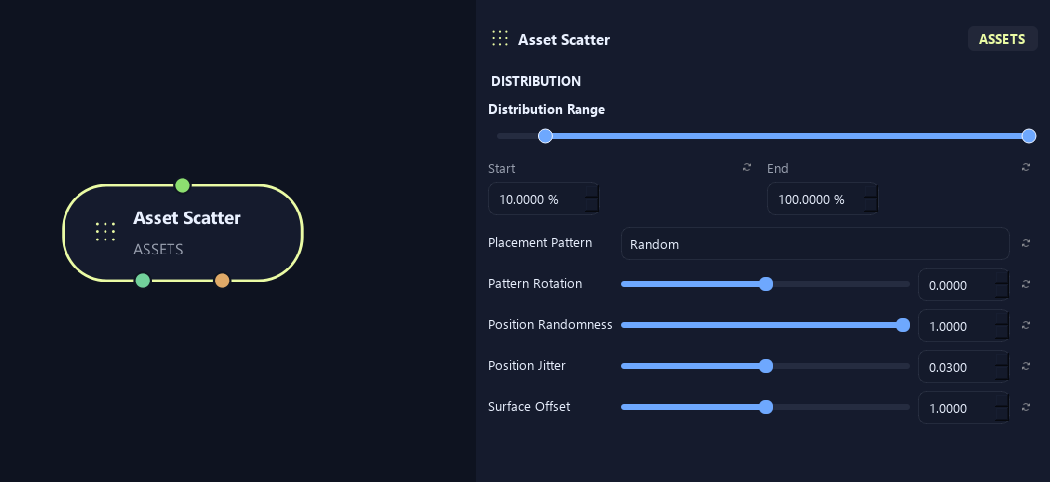
- Distribution Range — Start %
Sets where placement begins on the parent. Zero is the base and one is the tip; the range slider displays percentages.
- Distribution Range — End %
Sets where placement ends. Together with Start, this defines the Distribution Range.
- Placement Pattern
Random distributes around the branch. Parallel creates opposing pairs at one height. Alternating uses successive heights on opposing sides.
- Pattern Rotation
Rotates the placement pattern around the branch.
- Position Randomness
Randomly turns each pattern while preserving pairs and alternation.
- Position Jitter
Loosens spacing along the parent while keeping paired sites together.
- Surface Offset
Moves pivots from the branch center toward its surface. Zero uses the centerline; one reaches the surface.
Distribution (2)
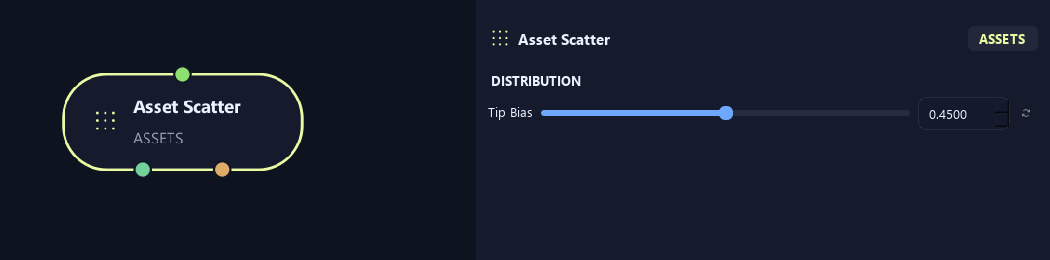
- Tip Bias
Biases placement toward branch tips. Increase it for more detail near the outer crown.
Orientation (1)
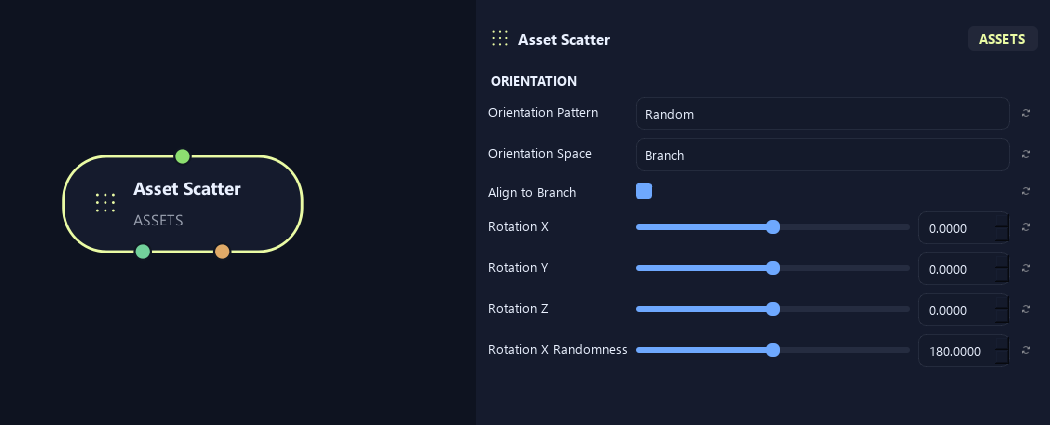
- Orientation Pattern
Random allows free orientation. Parallel keeps one local orientation. Alternating flips every second asset 180 degrees around its local Y axis.
- Orientation Space
Branch follows the parent direction. Ground keeps the asset growth axis along the horizontal ground plane.
- Align to Branch
Aligns assets to the supporting branch before additional rotations.
- Rotation X
Rotates assets around local X.
- Rotation Y
Rotates assets around local Y.
- Rotation Z
Rotates assets around local Z.
- Rotation X Randomness
Adds random local X rotation.
Orientation (2)
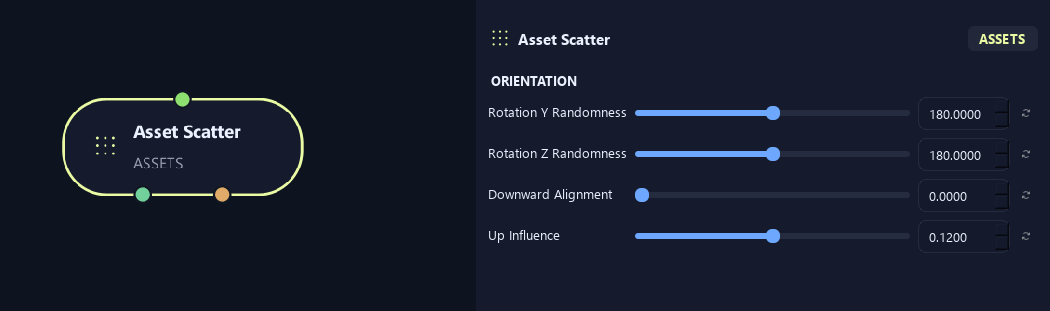
- Rotation Y Randomness
Adds random local Y rotation.
- Rotation Z Randomness
Adds random local Z rotation.
- Downward Alignment
Turns assets toward world down without bending supporting branches.
- Up Influence
Biases the growing direction upward. Negative values bias it downward.
Scale
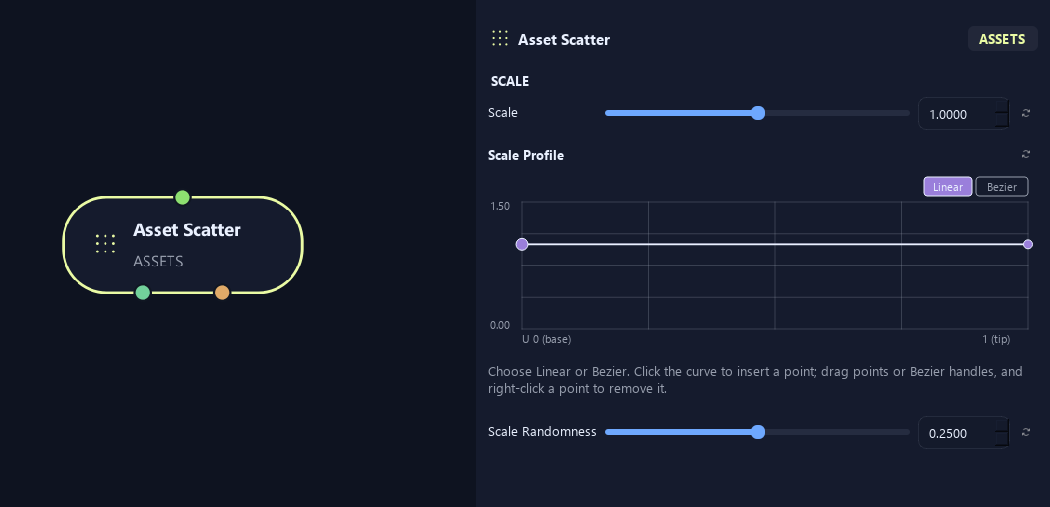
- Scale
Scales the asset or generated child uniformly. One keeps its size; 0.5 halves it.
- Scale Profile
Multiplies asset size across the distribution range. Left is Start and right is End. One keeps size; zero reduces it to nothing at that point.
- Scale Randomness
Varies size between placements. Zero keeps one scale multiplier.
Advanced
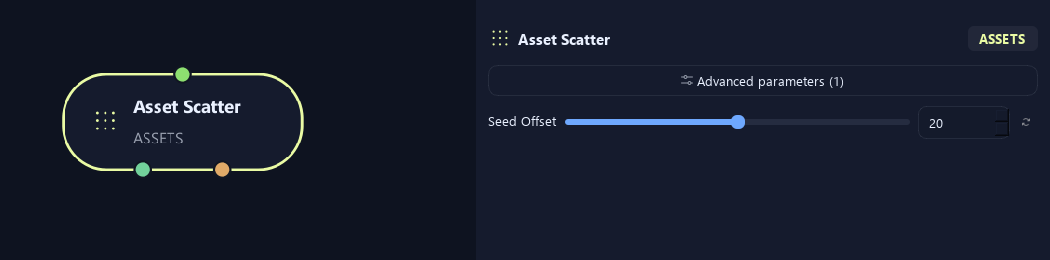
- Seed Offset
Changes this node's random variation. Keep the seed and settings unchanged to reproduce the same result.
Generation
Shown example: Distribution = Density.
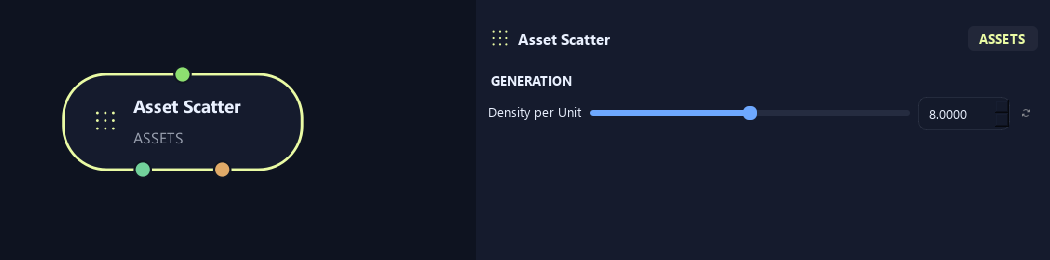
- Density per Unit
Sets placements per unit of eligible branch length. Longer branches receive more.
Available when Distribution is Density.
What is ZenGrove used for?
Explore all 45 ZenGrove nodes for Maya with illustrated settings. Shape Cross Section profiles, create multi-way Splits, find properties and build procedural plants.
Which host application does ZenGrove support?
ZenGrove is built for Autodesk Maya and is distributed through AO Studio Tools.
Where can I download ZenGrove?
Download the current AO Studio Tools package from https://aostudio.tools/getthetools.html and install it through AO.Hub.