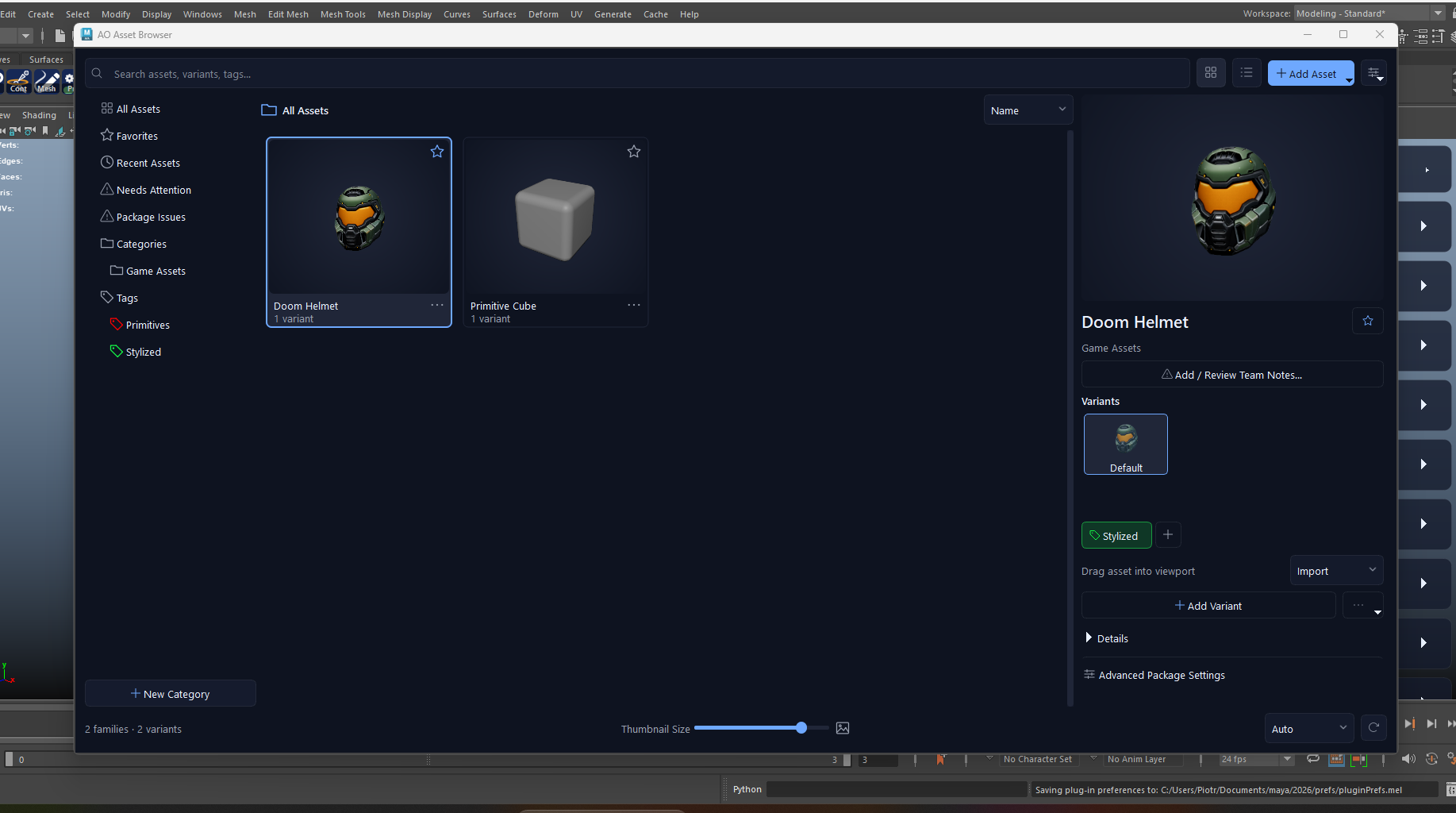
MBX opens straight into the Asset Browser. Find work visually, choose a variant and bring it into Maya. Each asset is backed by a portable package that keeps the scene, its collected resources and its preview together.
01Save selected objects or a complete scene as an asset. Capture a viewport preview or choose an image, then add a name, category, description and tags.
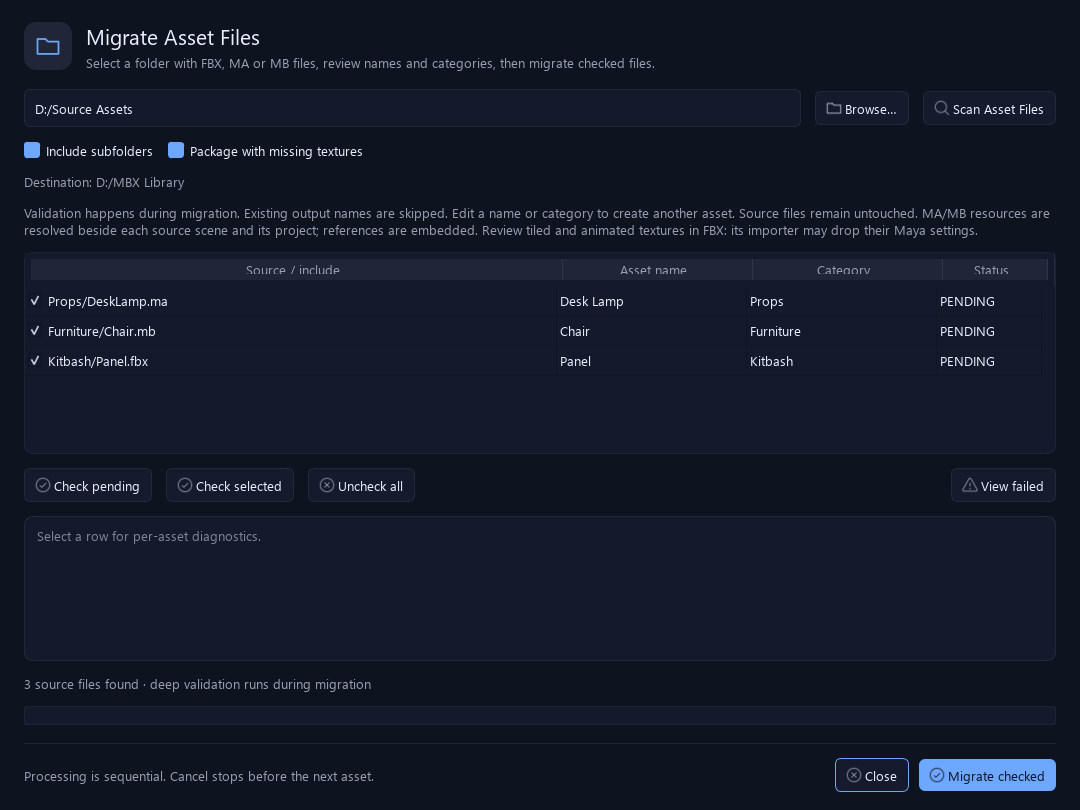
02Bring existing .ma, .mb and .fbx files into the library. Drop selected files onto the browser or scan folders and subfolders, review names and categories, then migrate the checked files into portable MBX assets.
03Browse thumbnails or a detailed list. Search assets, variants and tags; filter by category and return quickly to favorites and recently used assets.
04Keep variations together as one asset family. Choose a named variant, add another from Maya or update the selected variant as your work evolves.
05Import or reference an asset in the current scene. Drag it into the viewport with a placement preview, choose its position and use snapping when needed.
06Organize categories and folders, assign colored tags and edit metadata directly in the browser. Keep a personal library or use a shared library folder.
07Leave team notes on a variant, mark what needs attention and resolve it after changes. Review notes and tag colors are shared through the library folder.
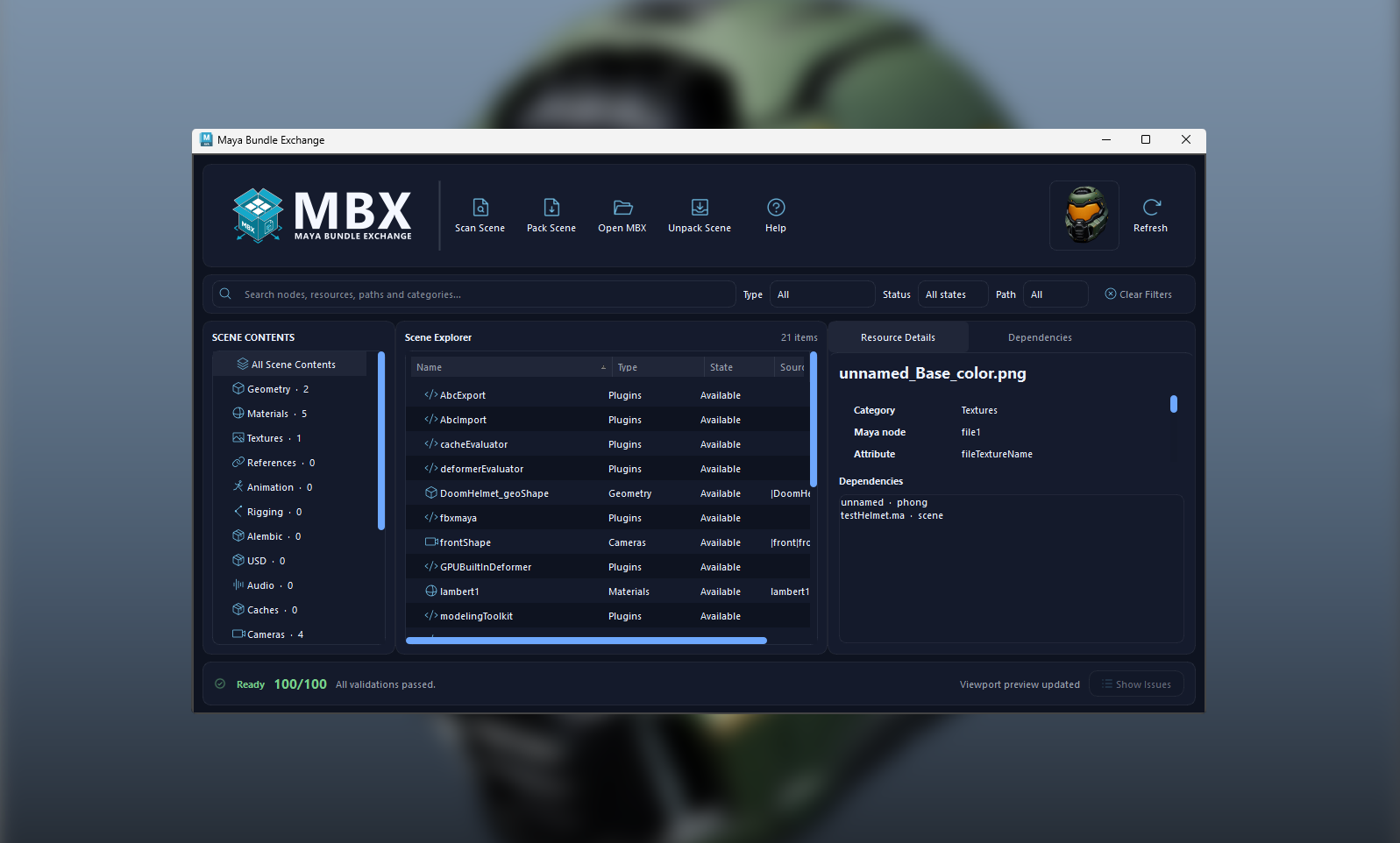
08Collect textures, references, caches, Alembic, USD, audio and other detected dependencies in one .mbx asset. Inspect missing files and portability issues in Advanced Package Settings.
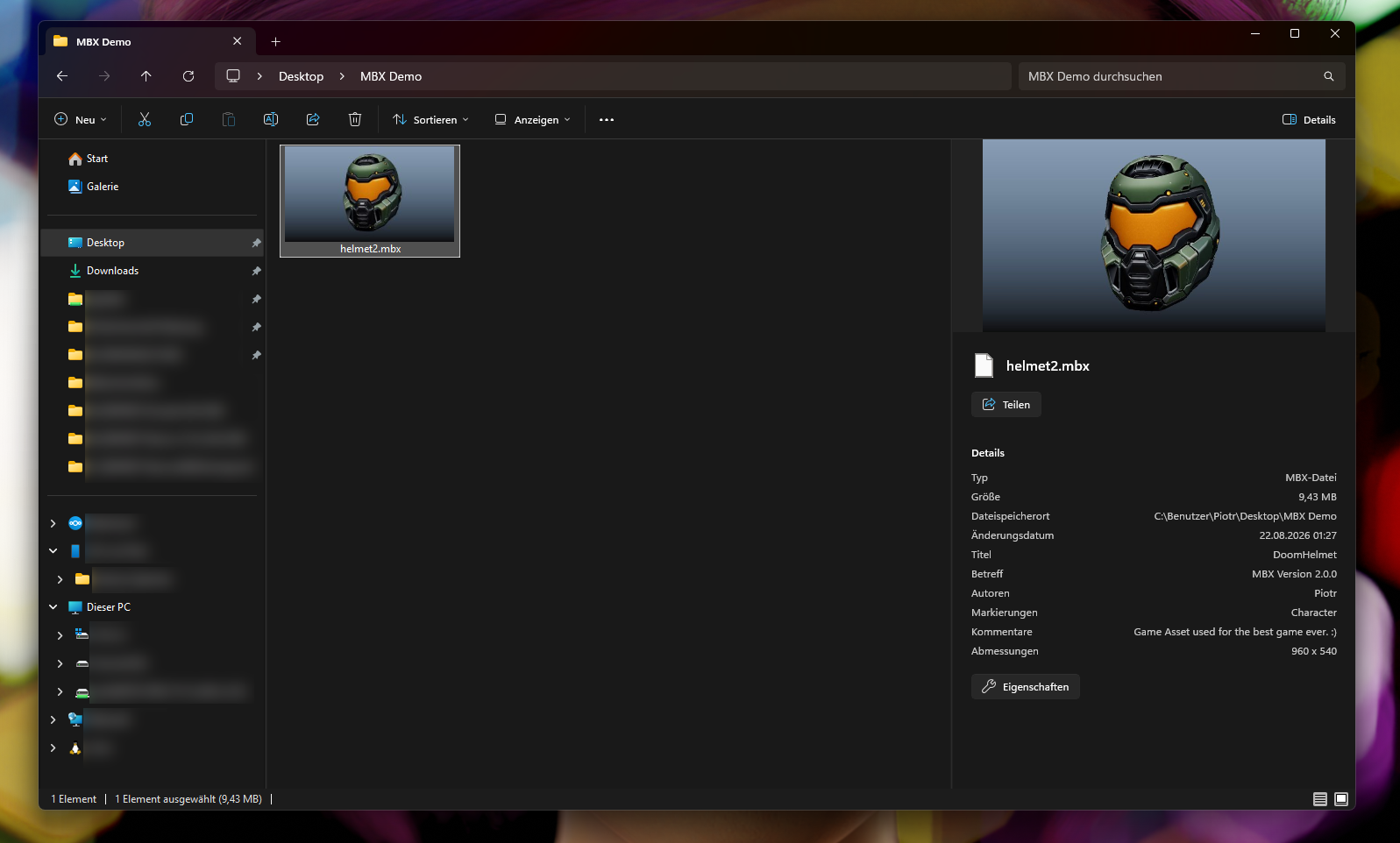
09Recognize .mbx packages in Windows Explorer through embedded thumbnails. Open a package in the Asset Browser or copy it into your library through the Windows integration.